
November 20, 2025
Mango Click-2-Call and MaxAssist
Reaching patients just got a whole lot easier!
Mango subscribers can now make calls directly from the MaxAssist toolbar with a single click, transforming every outreach moment into a smooth, streamlined experience.
This new feature brings speed and simplicity right to your fingertips. No more switching apps, searching for numbers, or juggling workflows. Just click, connect, and communicate instantly.
With direct calling built into MaxAssist, patient engagement becomes more efficient, more personal, and more responsive. Care teams gain back valuable time, patients get faster communication, and everyone benefits from a more connected experience.
This upgrade reflects our commitment to creating innovative, intuitive tools that elevate every step of the patient journey. Mango subscribers can start using one-click calling today and experience a smarter, more seamless way to stay in touch.
Note: If you are not yet a Mango customer and would like more information , please click here to book a demo.
Setting Up Mango Click-2-Call
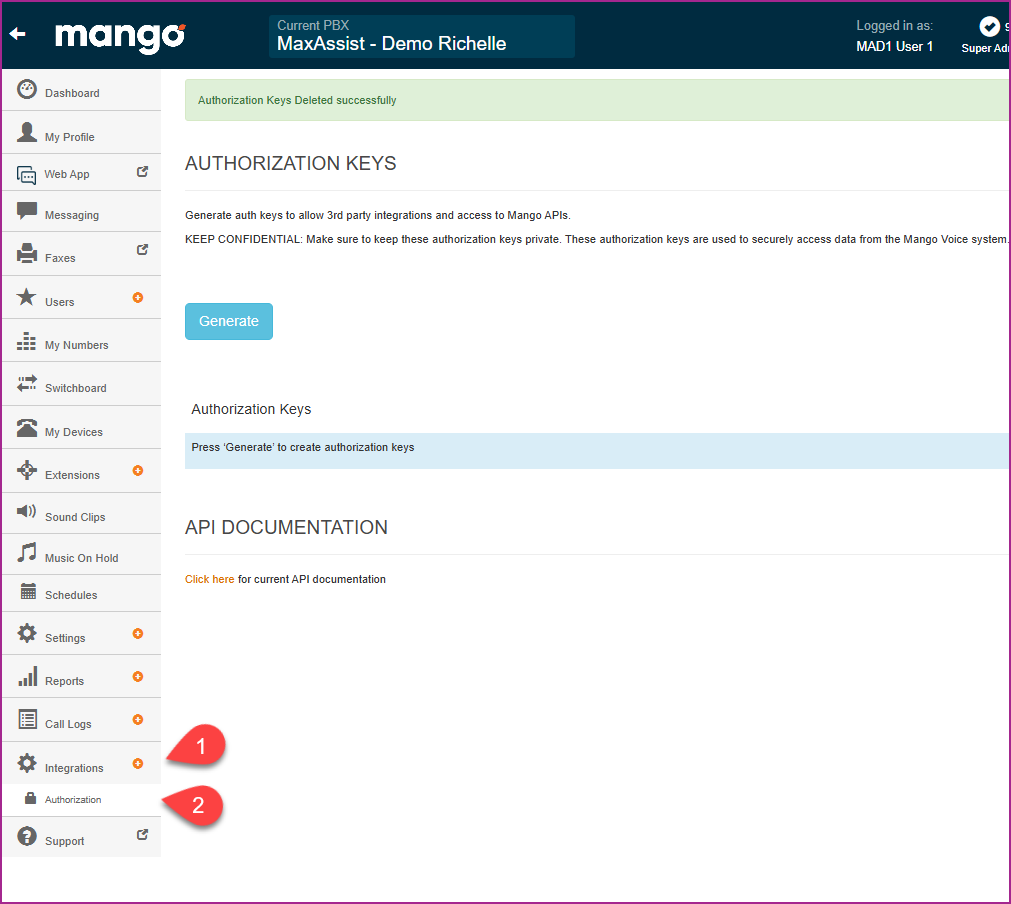
1) Log in to your Mango Dashboard and the click Integrations (1) and then Authorization (2).
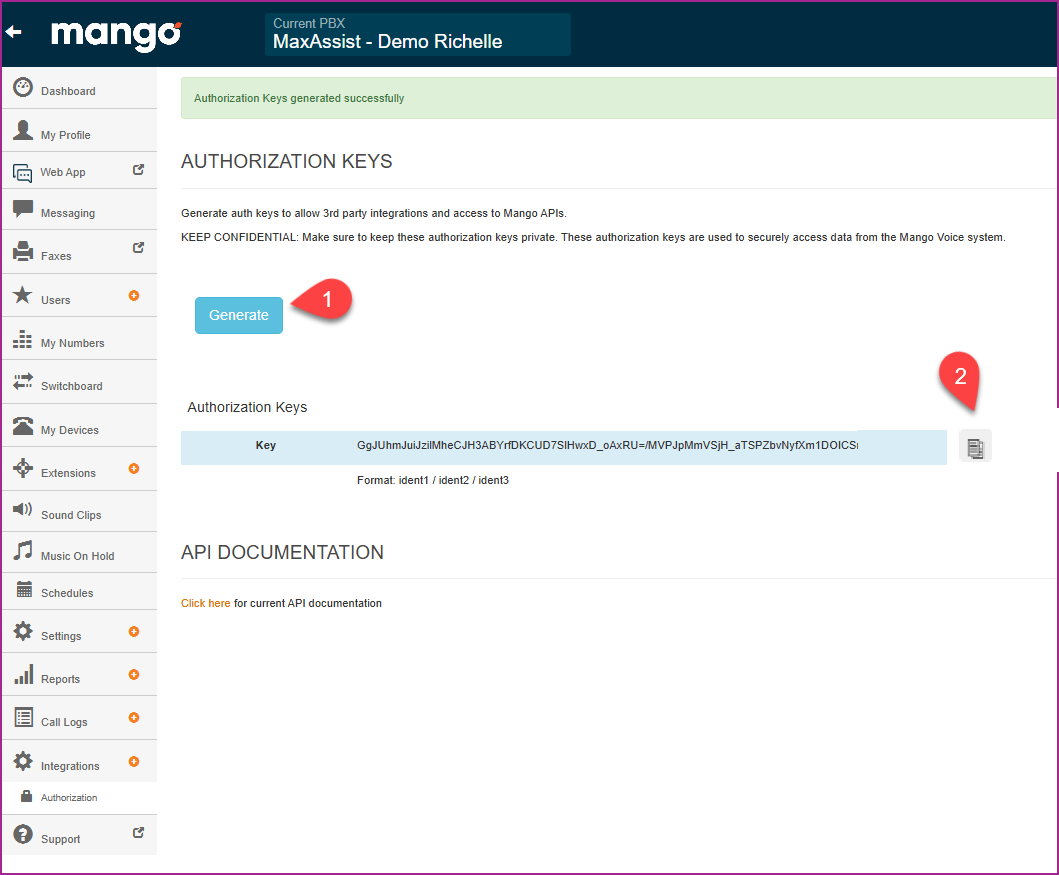
2) Click the Generate button (1) and then click the “copy” icon (2) to copy the Key that appears to the left.
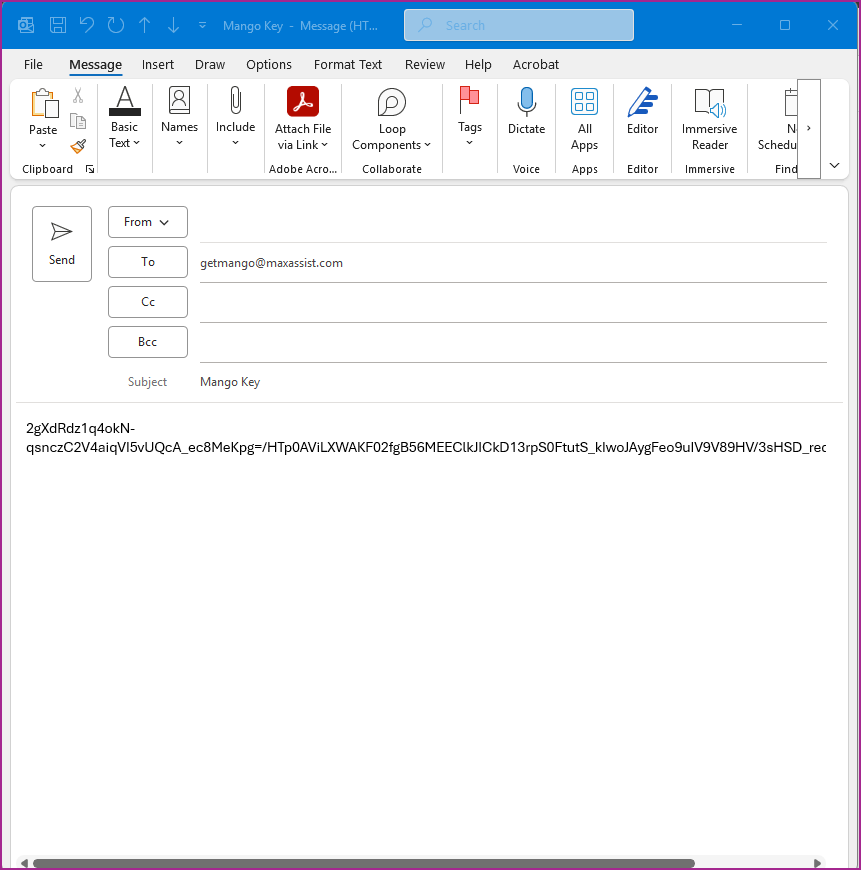
3) Paste the key into a new email message and send it to getmango@maxassist.com.
4) Once we recieve the key, our Client Success department will call you to discuss next steps.
Using Mango Click-2-Call
Please Note: The Click-2-Call Feature can be used with both a traditional phone line and/or the Mango Soft Phone application.
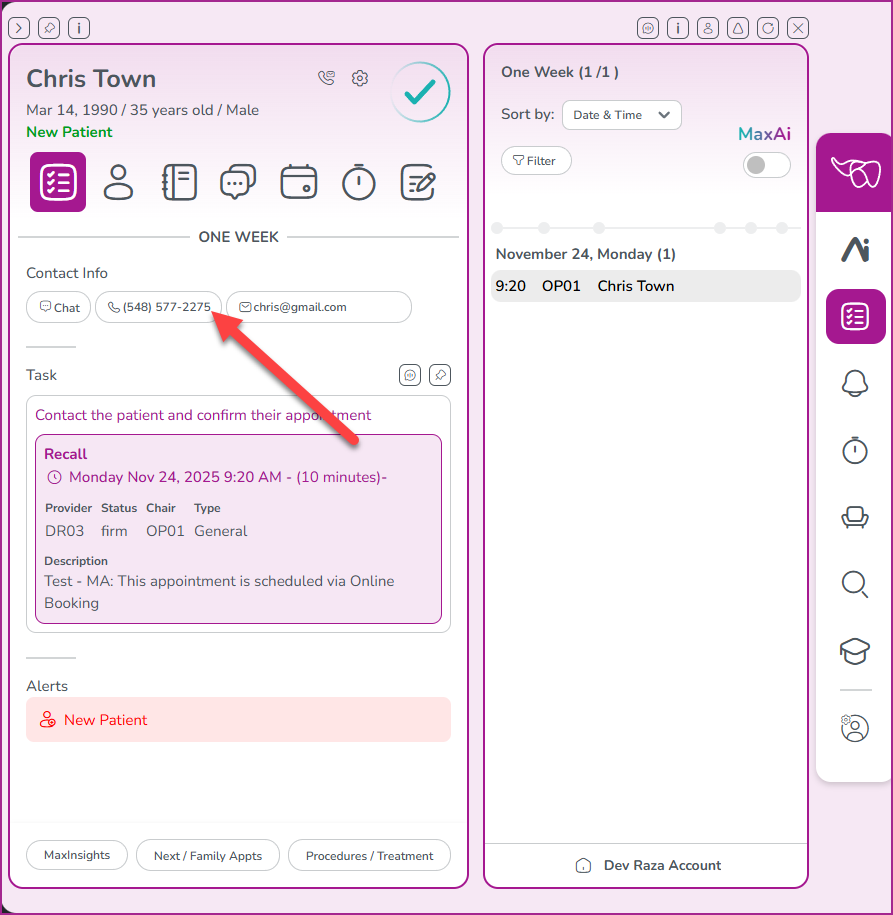
1) In the MaxAssist toolbar, click on the phone number in any Patient Detail page.
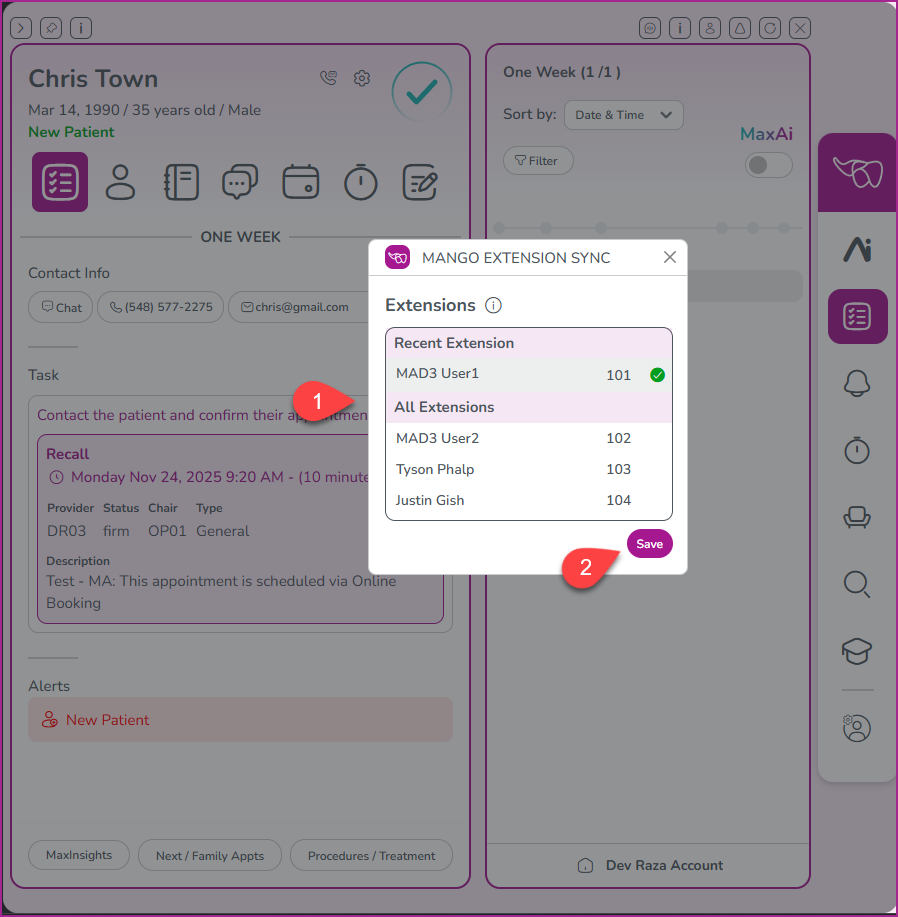
2) In the dialogue box that appears, you will see all of the users and extensions assigned to those users in the Mango Phone system.
In this dialogue (1), select the user extension that corresponds to your profile in Mango and click Save (2).
Note: The system will remember your chosen extension until you log out of MaxAssist. Each time you login to MaxAssist, you will see the prompt again, asking for confirmation of the extension you are using for that period.
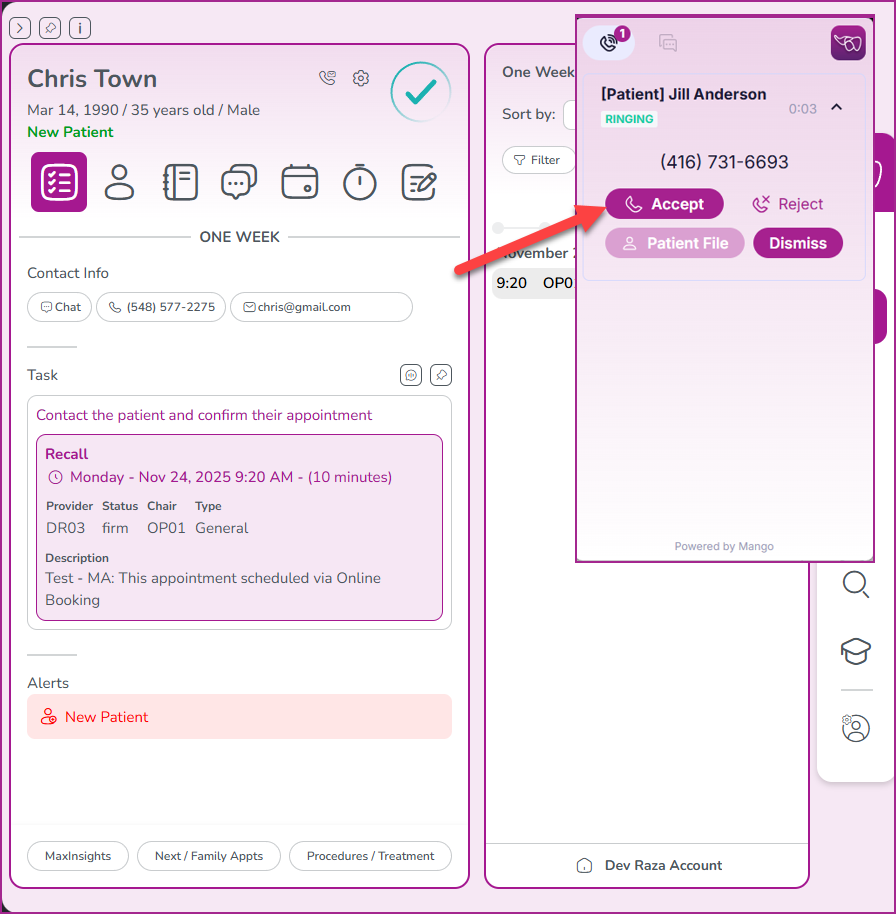
3) Once the extension is selected the call initiates on both the soft and desktop hard phone.
At this point, you can click on the Accept button and continue the call on the soft phone or pick up the hard phone which will be ringing to alert you that the call is proceeding.
Clicking the Accept button here will also stop the hard phone from ringing.
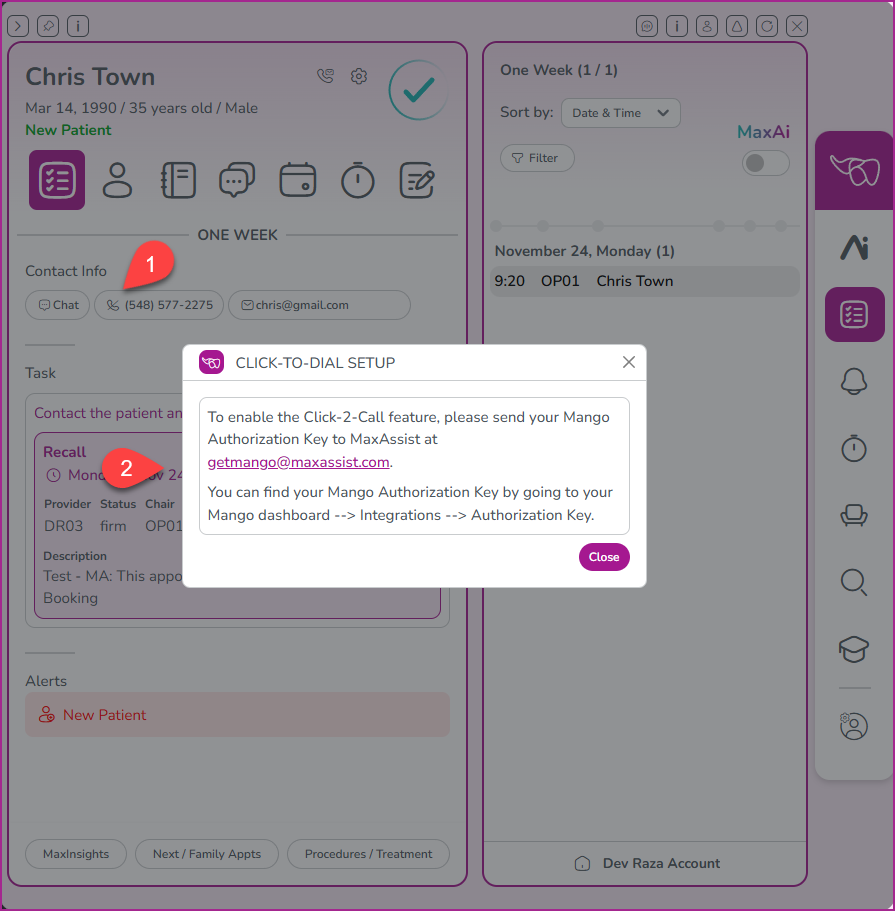
Note: If you see the phone with a “slash” icon through it (1) and this message (2), that means that the Authorization Key has not been entered. Please refer to “Setting Up Mango Click-2-Call” above.
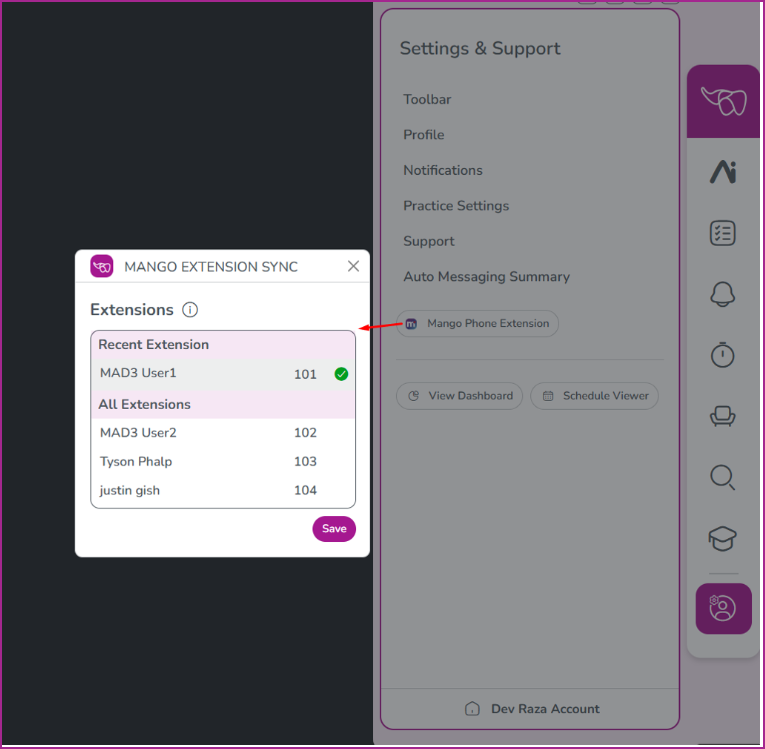
If you mistakenly selected the wrong extension in Step 2 above, you can navigate to Settings & Support in the MaxAssist toolbar and then click the Mango Phone Extension button and select the correct extension in the dialogue box.
Alternatively, log out and log back in the MaxAssist Tool bar and then select the correct extension when initiating your first call.
Again, Click-2-Call will always use that extension associated to that user until you log out of MaxAssist.
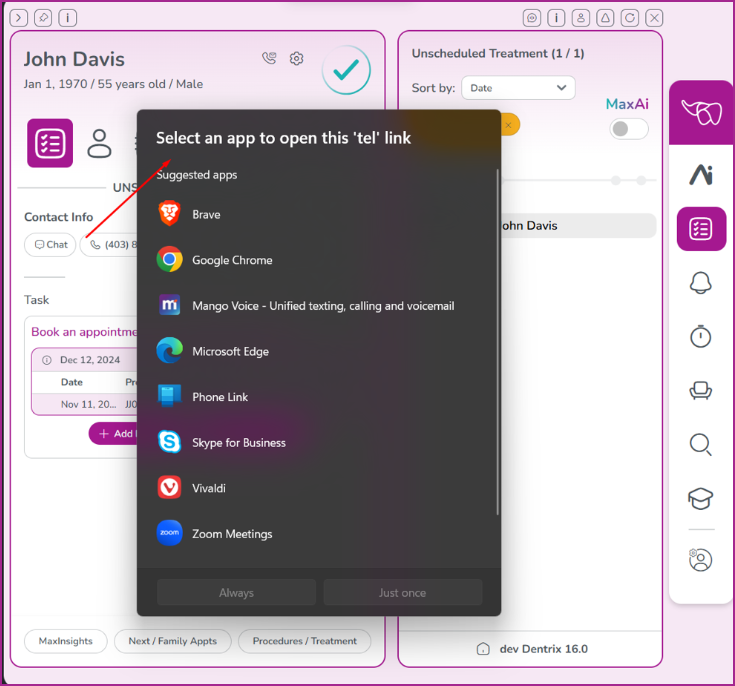
If you are not using Mango Phone service and haven’t already selected a default app, clicking the phone number on the Patient Information Page brings up this prompt.
Here you select the default app and also choose, Always or Just Once for that selected option.
Want more information about Mango? Click here to book a demo with our Mango Phone Specialist.
For more information on this or any of our features, please reach out to us.
Phone: 1-800-651-8603 ext 1,
email: support@maxassist.com
Live text chat at www.maxassist.com
Thanks for using MaxAssist!